What-if mode
What-if, at the right of the row above the chart, turns on what-if mode: a copy of your plan that you change without touching the plan itself. Pay down the loan or top up super, buy now or wait a year. The same button then reads Exit what-if mode.
While it is on, a dark bar above the chart says so, and every change goes to the what-if. The bar leads with where each milestone now lands against the plan, and a toggle under it lists each change, with an × to undo it. The chart shows both as lines, the plan solid and the what-if dotted.
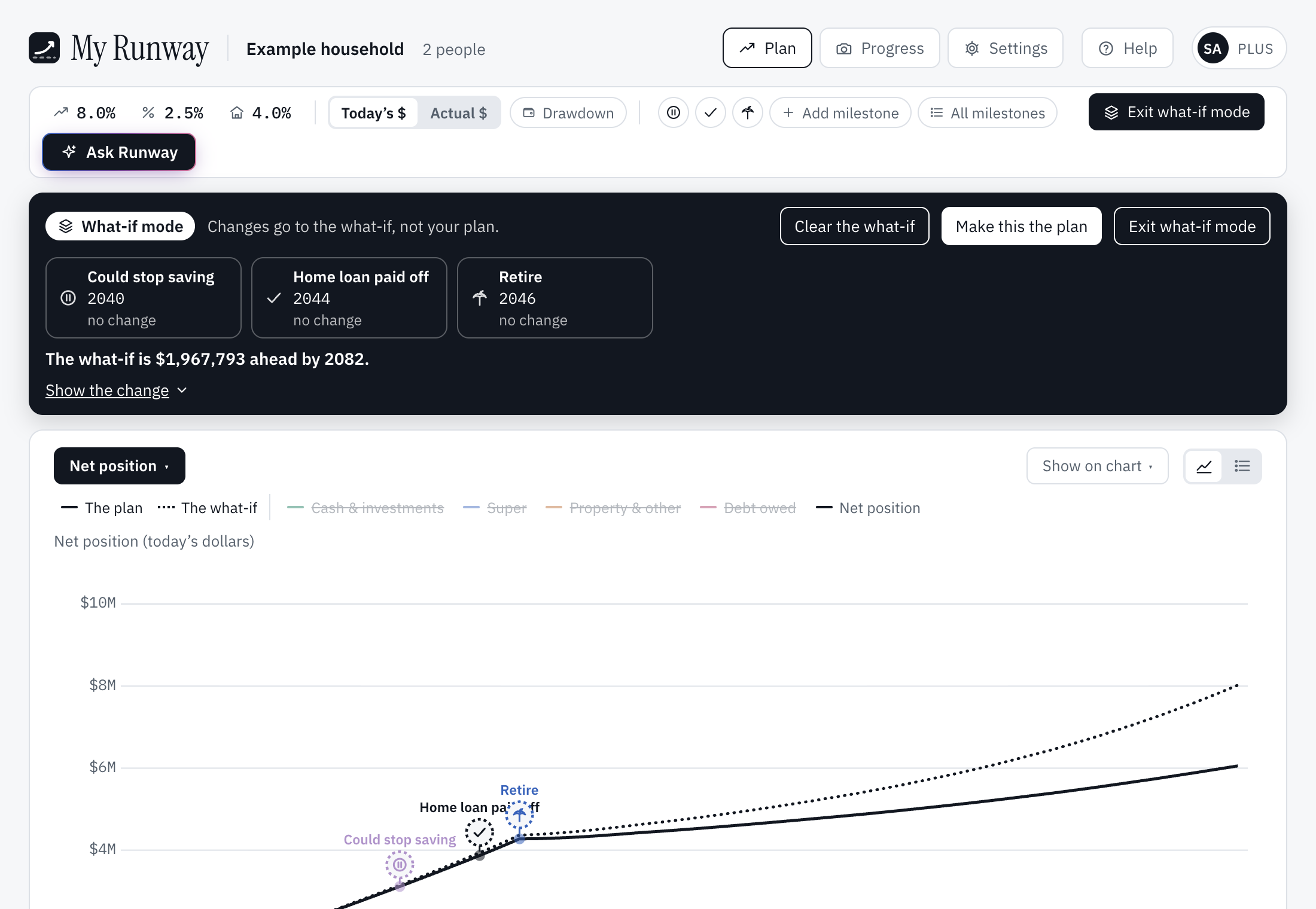
Once something differs, the bar has two more buttons, each of which lists the changes first:
- Make this the plan puts the changes into your plan.
- Clear the what-if throws them away; the plan is not touched.
- Exit what-if mode goes back to the plan and keeps the what-if for next time.
In what-if mode, undo gives way to the × on each change, and the smart plans show only their insights. A plan has one what-if: a smart plan or Ask Runway can open its answer in what-if mode too, replacing the one there, and says so first.
My Runway shows what each version does; it never says which is better. What-if mode is part of Plus; on the free plan the button shows a padlock and a preview. In a plan shared with you, it needs Plus on both accounts.
Still stuck?
Signed in? Choose Help at the top of the app, pick what it’s about and tell us what happened; it reaches us with the page you were on, and you get a copy. Otherwise write to [email protected]. We reply by email. Please don’t send passwords or account numbers.