Changing your plan
The cards under the chart are what the plan is made of: accounts, property, debts, income and expenses, in groups that fold and still show their total. Open a card to change it. As you type, a line in the editor shows what the change does to the plan.
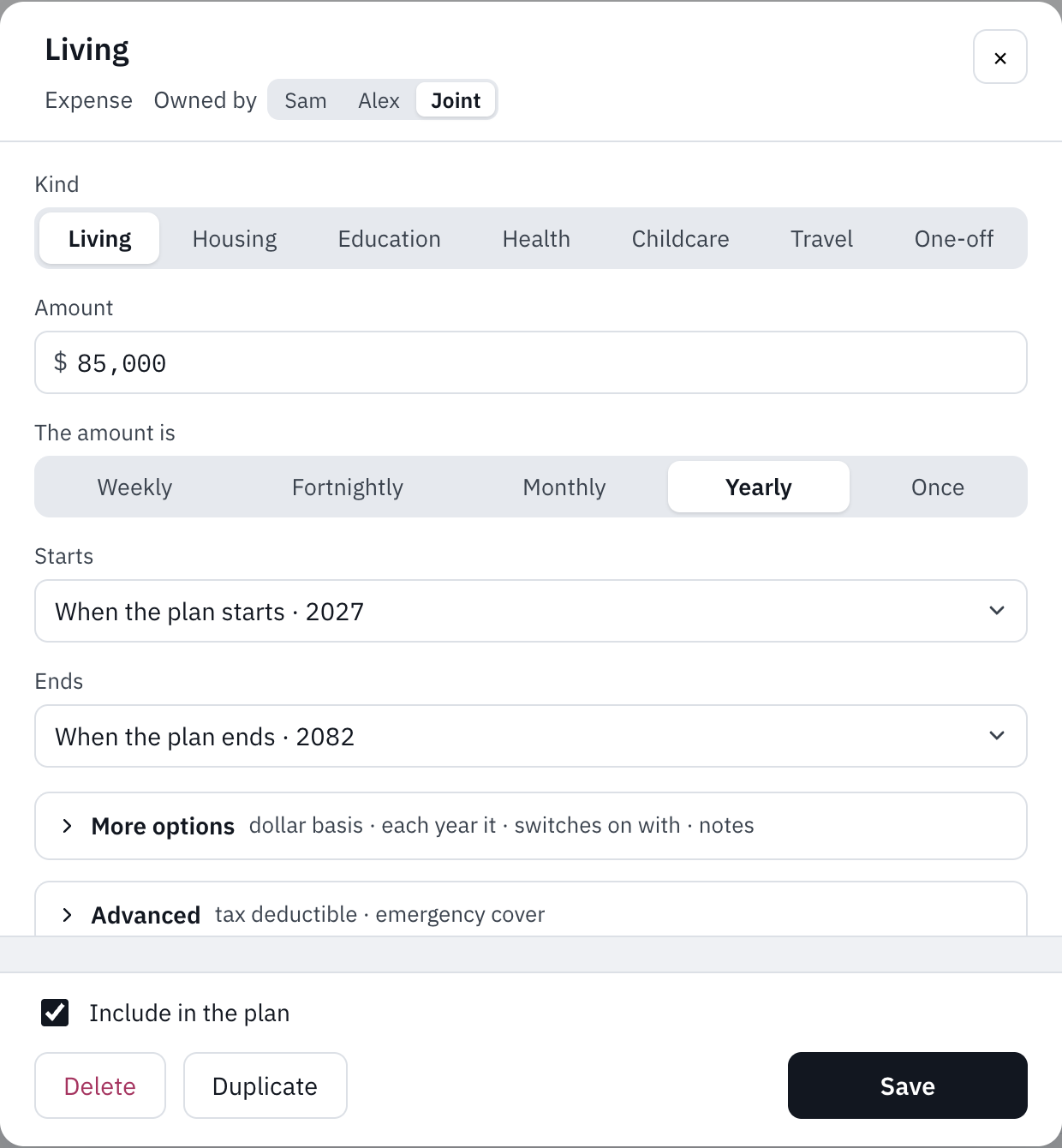
Each editor shows the few fields most people need, with the rest under More options and Advanced. Every default is there to see and change. Include in the plan leaves a card out without deleting it, and Notes holds anything you want to remember (leave out account numbers and logins). The plan’s bank account, where spare cash lands, can’t be deleted or left out.
A year or an age
When something starts or ends, choose In a year I choose and type the year, or When I’m … and type your age then; a couple’s plan offers the partner’s age too. A date can also be tied to a milestone, and moves with it.
By the week or the month
An asset’s income (rent, interest, dividends), a loan’s repayments and extra repayments, and a property milestone’s rent can be typed a week, a fortnight, a month or a year; the yearly figure shows under it. Income and expenses say how often the amount comes in The amount is.
Duplicate and delete
Duplicate, beside Delete in an editor, makes a copy named “(copy)” to change: a second investment property, say. Milestones duplicate the same way. On the free plan, at the limit, Duplicate shows a padlock. Deleting a property with loans on it offers to delete them together.
Undo
Undo and Redo above the chart (or Ctrl+Z and Ctrl+Shift+Z, ⌘Z and ⇧⌘Z on a Mac, or Ctrl+Y) step through your last ten changes to the plan, this visit only. Changes in Settings and Household aren’t steps and start the history again, as does the plan moving on a year; today’s balances aren’t steps. In what-if mode Undo and Redo give way to an × on each change.
Today’s balances
The balances of things you have today belong to the account, not one plan, and typing a new figure there changes it everywhere. Update my values on the Progress page updates them together.
A new financial year
On 1 July the plan moves on to start in the new year, and its amounts move into that year’s dollars. If it had milestones in the year just passed, it first asks of each: It happened or Not yet, then Move my plan on. One that happened goes into the plan the way Add to plan would put it (a property and its loan, say); one that didn’t is worked out again from the new year.
If your balances are from an earlier year, a note above the chart asks you to bring them up to date: Update my values, They’re up to date (if you update them every month, say), or Not now, which folds it to one line. You also get an email on 1 July; turn it off under Emails on your account page.
Still stuck?
Signed in? Choose Help at the top of the app, pick what it’s about and tell us what happened; it reaches us with the page you were on, and you get a copy. Otherwise write to [email protected]. We reply by email. Please don’t send passwords or account numbers.